
Report Creation Wizard | Data Reporting
Create reports in minutes using a guided workflow.
The Report Creation Wizard is part of the Data Reporting & Report Designer and helps you build structured reports step by step.
👉 [Button] Explore Data Reporting Tool

How the Report Creation Process Works
Step 1 Choose Report Type
Select the type of report you want to create based on your data and use case.

Step 2: Data Connection
Connect to your database or select an existing connection.

Step 3: Select Data Source
Choose from multiple supported databases and data providers.

The wizard supports the following data source types:
| Supported Databases | Supported Versions / Explanation |
| Microsoft SQL Server | 2005 or higher 2005 Express or higher Azure SQL Database |
| Microsoft Access | Access 2000 or higher Access 2007 or higher |
| Microsoft SQL Server CE | 3.5, 4.0 |
| Oracle Database | 9i or higher |
| Amazon Redshift | n/a |
| Google BigQuery | n/a |
| TerraData | 13.0 or higher |
| SAP HANA | 2.0 or higher |
| SAP Sybase Advantage | Advantage Database Server 9.1 or higher |
| SAP Sybase ASE | Sybase Adaptive Server 12.0 or higher |
| SAP SQL Anywhere | 11 or higher |
| IBM DB2 | 9.5 or higher |
| Firebird | 1.5 or higher, Dialect 3 |
| MySQL | 4.1 or higher |
| Pervasive PSQL | 9.x or higher |
| PostgreSQL | 7.x or higher |
| VistaDB | 4, 5, 6 |
| SQLite | 3.x |
| Object | Connects to any data object that implements the IList, IList or IEnumerable interface. |
| Entity Framework | Binds to a Microsoft ADO.NET Entity Framework data source. |
| Excel File | Obtains data from Microsoft Excel workbooks (XLS, XLSX, or XLSM files) or CSV files. |
| JSON | Connects to JSON-formatted data. |
| MongoDB | Connects to a MongoDB instance. |
| XPO | Binds to XPO Data |
| Data Federation | Retrieves data from mul |
Step 4: Select Tables, Views & Queries
Choose the data structures you want to include in your report.

Step 5: Select Data Fields
Select the fields and columns you want to display.


Step 6: Group Data
Organize your data into logical groups for better readability.

Step 7: Apply Summary Functions
Add calculations such as totals, averages or counts.

Step 8: Page Settings & Layout
Customize the design, layout and visual appearance of your report.

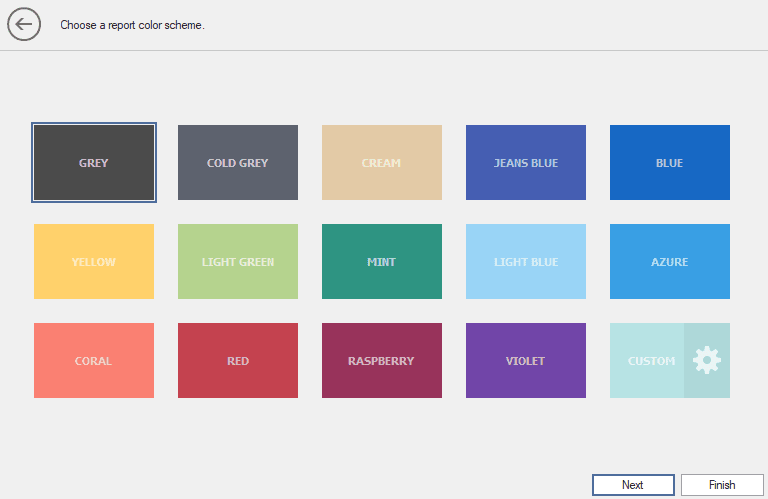
Step 10: Color Scheme
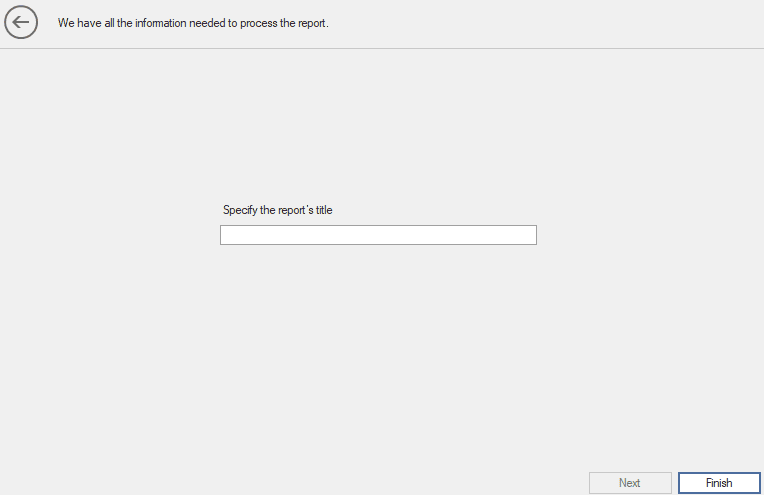
Step 10: Finalize Report
Set the report title and finalize your output.
Why Use the Report Creation Wizard?
- No manual SQL required
- Fast and guided report creation
- Works with multiple databases
- Structured and consistent output
- Easy to use for both technical and non-technical users
Part of the Data Reporting & Report Designer
The Report Creation Wizard is fully integrated into the Data Reporting & Report Designer, allowing you to create, edit and manage reports in one central tool.
👉 [Button] View Data Reporting Tool
👉 [Button] Explore Features
