
Chart Designer | Reporting & Visualization
The Chart Designer allows you to visually represent asset data using dynamic and customizable charts.
It helps transform raw IT asset data into structured visual insights for reporting and analysis.
To open the Chart Designer:
👉 Right-click on an existing chart within the report.
The Chart Designer window will appear.

The Chart Designer consists of four main sections:
- Options
- Properties
- Data
- Chart Type
1. Options Tab
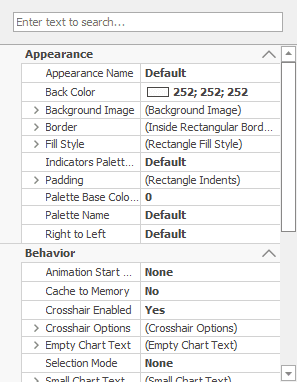
The Options tab controls general visual settings of the chart.
Appearance
Here you can configure:
- Appearance style (default or custom)
- Palette (color theme)
- Background color
- Border visibility and thickness
- Auto layout settings
These options allow you to align the chart visually with your corporate branding or reporting standards.
Behavior
You can configure:
- Animation settings
- Crosshair options
- Memory caching
- Empty chart behavior
- Small chart text settings
This ensures the chart behaves correctly in interactive and exported reports.
2. Properties Tab
The Properties section allows detailed customization of chart elements.
From the left panel, you can manage:
- Chart structure
- Series
- Labels
- Points
- Indicators
- Axes (Primary and Secondary)
- Legend
- Titles
For example:
- Modify axis ranges
- Rename series labels
- Configure legends
- Add multiple panes
- Define primary and secondary axes
This level of control allows advanced visualization scenarios such as:
- Performance vs. inventory metrics
- Multi-axis comparisons
- Stacked asset category charts
3. Data Tab
The Data tab defines what information is displayed in the chart.
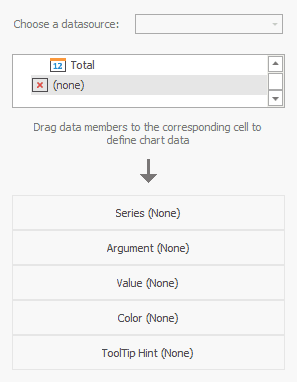
You must:
- Choose a data source
- Assign data members to chart elements
You can map:
- Series
- Argument
- Value
- Color
- Tooltip Hint
Example:
For an asset overview chart:
- Argument → Asset Model
- Value → Asset Count
- Series → Asset Category
- Tooltip → Detailed asset info
This mapping determines how the data is structured and grouped inside the chart.
Without proper data mapping, the chart will not render correctly.
4. Chart Type Selection
You can change the chart type at any time.
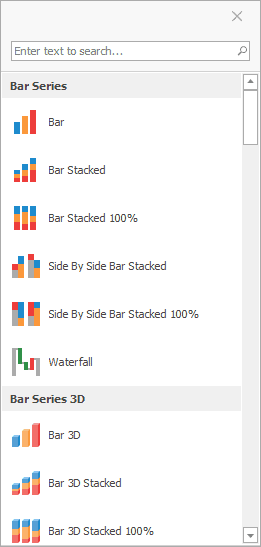
To change the chart type:
👉 Open Chart Designer
👉 Select Chart Type
Available types include:
Bar Series
- Bar
- Bar Stacked
- Bar Stacked 100%
- Side-by-Side Bar Stacked
- Waterfall
3D Bar Series
- Bar 3D
- Bar 3D Stacked
- Bar 3D Stacked 100%
Different chart types are useful for different reporting needs:
- Bar → Simple asset comparisons
- Stacked Bar → Category distribution
- 100% Stacked → Percentage distribution
- Waterfall → Asset growth or reduction tracking
- 3D Charts → Visual presentation emphasis
You can switch chart types without losing your data configuration.
Example: Assets by Model
In the example shown:
The chart displays:
- Asset models on the X-axis
- Total asset count on the Y-axis
- A clear visual comparison of distribution
This is useful for:
- Inventory control
- Hardware lifecycle management
- Capacity planning
- Procurement analysis
Example title:
“Assets by Model – Current Inventory Overview”
Best Practices for IT Asset Reporting
To ensure clear and professional charts:
✅ Use consistent color palettes
✅ Avoid excessive 3D effects for analytical reports
✅ Always label axes clearly
✅ Use tooltips for detailed data
✅ Keep chart titles descriptive
When to Use Charts in IT Asset Management
Charts are particularly useful for:
- Asset distribution by location
- Hardware model comparison
- Lifecycle status overview
- Warranty expiration tracking
- Asset category breakdown
- Growth or reduction analysis over time
Summary
The Chart Designer in IT Asset Management provides:
- Flexible visual representation
- Advanced data mapping
- Multiple chart types
- Full visual customization
- Enterprise-ready reporting capabilities
It transforms raw asset data into structured insights that support decision-making and governance.
