
Data Reporting & Report Designer - Interface & Features
The Data Reporting & Report Designer allows you to create, edit, and preview reports through an intuitive interface. This page explains the main toolbar actions, overview lists, and design elements.
Data Reporting & Report Designer: Toolbar Actions
| Action | Shows | Opens form |
|---|---|---|
 | A complete wizard |  |
 | Opens the designer form you can make new, edit and design reports with this tool. See 'The Report Designer has the following elements' for explaining. |  |
 | Generate a print preview of the results in the grid. | |
 | The grid can display a find panel that enables users to search for keywords in visible columns. | |
| Generate a print preview of the results in the grid. | |
| The grid can display a find panel that enables users to search for keywords in visible columns. | |
 | This form holds the settings of the application. | This settings are stored in an xml file: sirkelreportssettings.xml |
 | More info about the program. The form has 3 tabs: | Tab 1: About the Application: the location, date, and version of the software. Tab 2: Assemblies: More info about the assemblies that are used. Tab 3: Assemblies Details |
 | Leaving the Sirkel Application |
Data Reporting & Designer tool: overview and list
| Possibility | Action | Results |
|---|---|---|
 | The default folder is been taken from the Settings and defaults form. | You can change the default report folder |
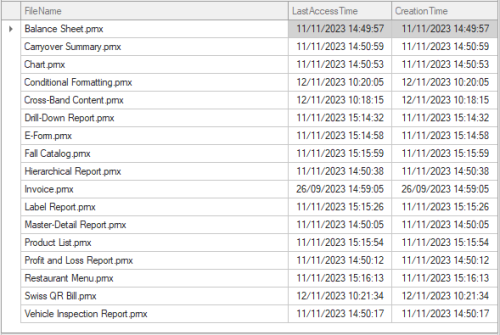 | List of all the reports | |
 | When pressed the report will be shown or you the print dialog.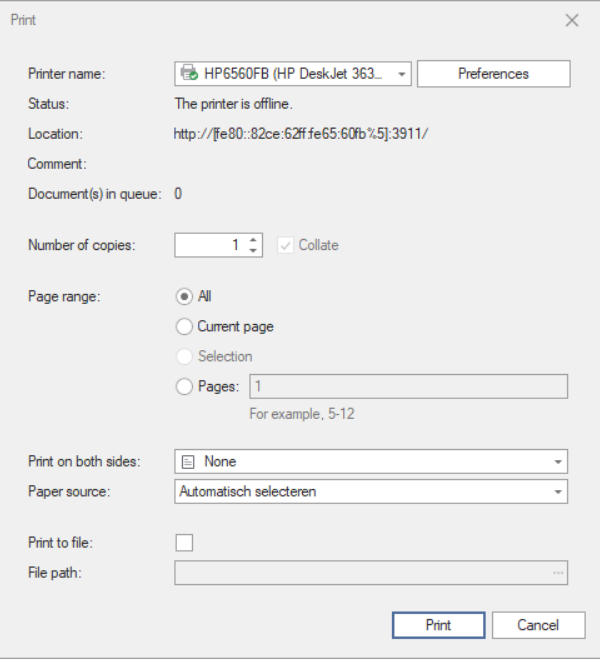 | 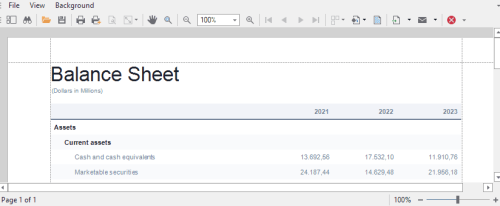 |
 | The default folder is been taken from the Settings and defaults form. | You can change the default design folder. |
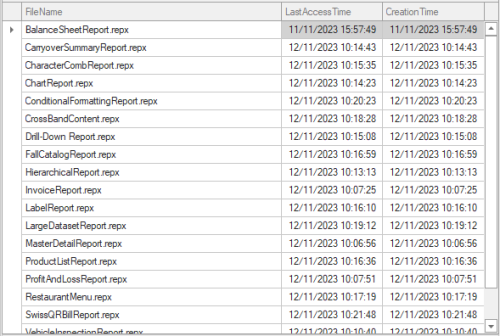 | List of all the designs. | |
 | When pressed on the design will be shown with a ribbon toolbar or not. Depending on the Settings |  For more info about the elements see The Report Designer has following elements |

The Data Reporting & Designer tool has the following elements:
| Option | Image | Meaning |
|---|---|---|
| Ribbon |  | Contains the main tabs: Home, Layout, Page, and View, and contextual tabs specific to the currently selected report control. The Ribbon control allows you to switch between Designer and Preview, and open the Scripts editor. |
| Design Surface |  | An area where you can add report controls and edit a report layout. |
| Toolbox |  | Lists all available report controls. You can drag a control from the toolbox and drop it onto a report design surface. |
| Report Explorer |  | Displays a tree-like hierarchy of report elements, data sources, and other components, and allows you to manage a collection of visual styles. |
| Field List |  | Displays the data source schema and allows you to manage calculated fields and parameters. |
| Report Gallery |  | Allows you to store and reuse report controls, styles, data sources, and entire report layouts. |
| Properties Window | 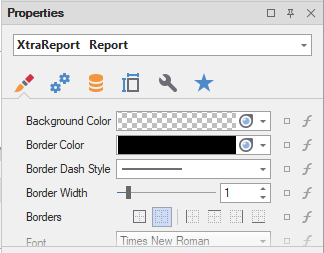 | Allows you to view and modify report settings and report element properties. |
| Group and Sort Panel |  | Allows you to group and sort data in a report. |
| Report Design Analyzer |  | Displays errors, warnings, and information messages that help users create or enhance a report layout. |
| Statusbar | Displays information about the selected report element. Contains a bell icon that displays the error count. Double-click this icon to invoke the Report Design Analyzer. The Status Bar contains a slider to change the zoom factor for the design surface. |
